How-to Lesson 6
Invite your crew and choose what they can do
About this lesson
- What you'll do
- Invite your crew by email so they see the team's projects and inventory, and choose what each person can do: owners run the team and its billing, contributors do the daily work, and viewers can look but not change anything.
- How long it takes
- About 3 minutes.
- You need
- A laptop or phone, signed in as the team's owner, and each person's email address.
-
Step 1 of 5
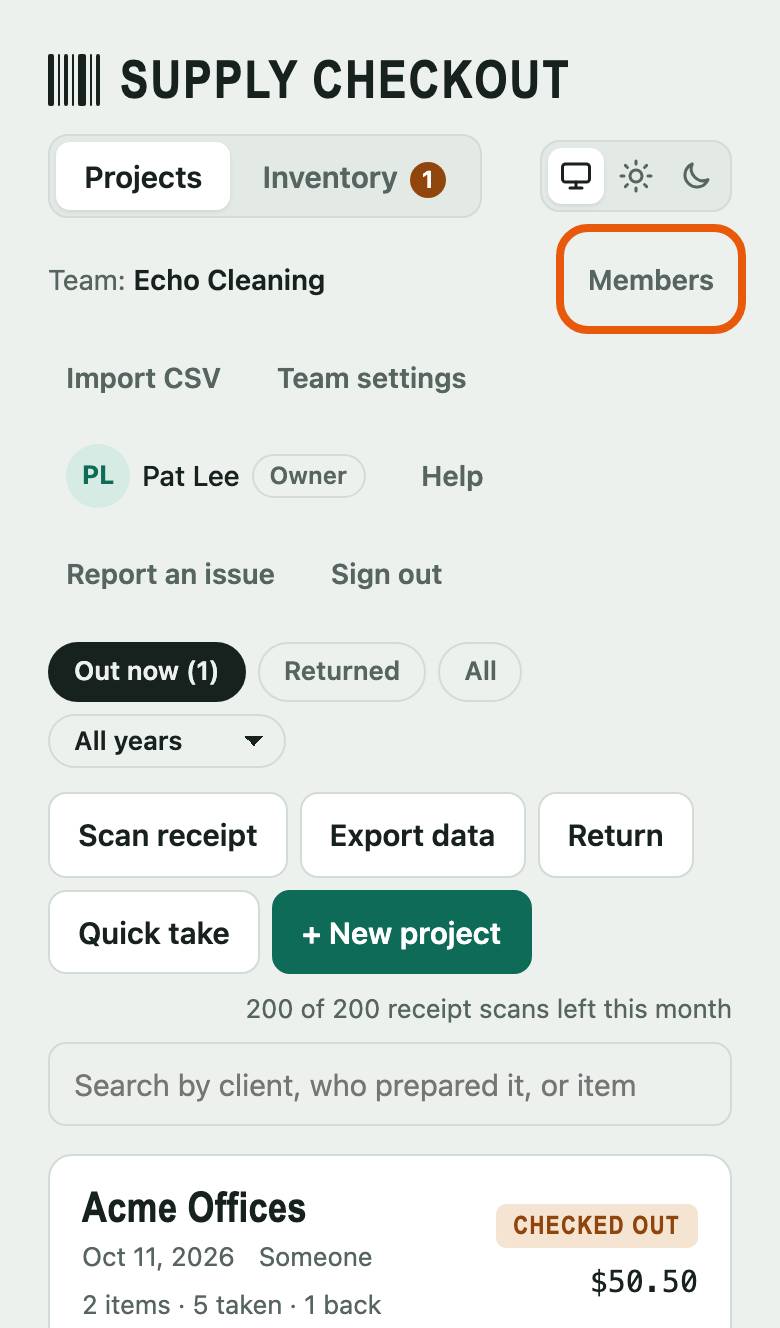
Open Members
In the bar under the header, tap Members. Only the team's owners see it.
-
Step 2 of 5
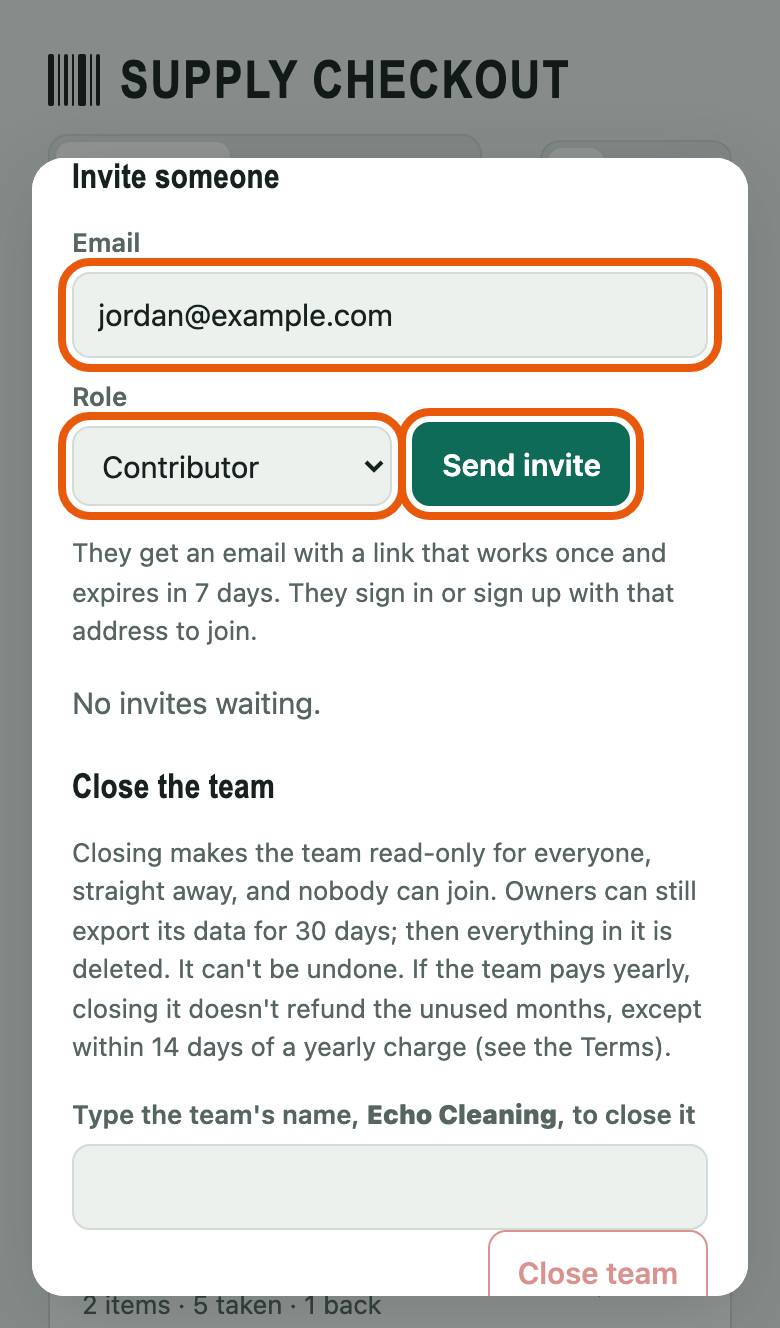
Invite someone
Under Invite someone, type their email in Email and pick a Role: Contributor for crew who check supplies out and back in, Viewer for a bookkeeper who only needs to look, Owner for someone who runs the team with you. Tap Send invite.
-
Step 3 of 5
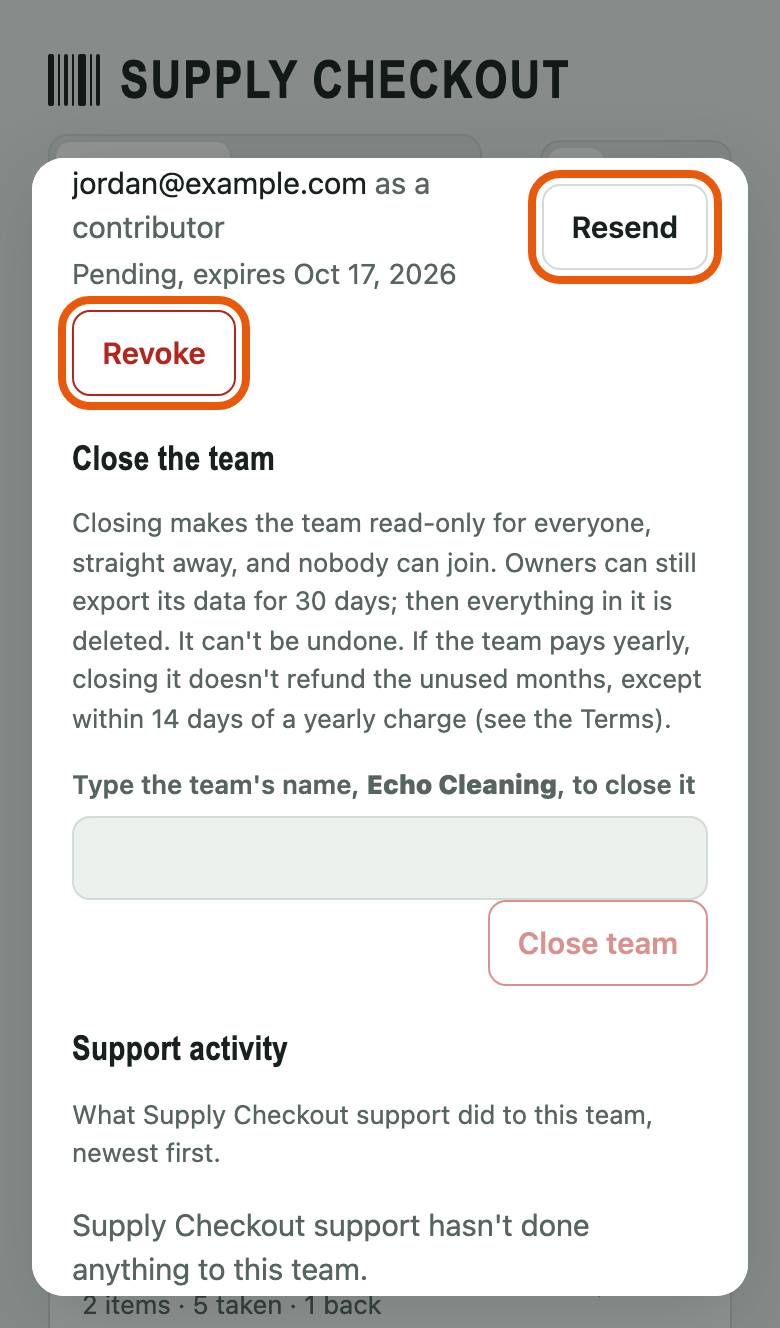
It waits for them to join
They get an email with a link that works once and lasts 7 days. Until they join, the invite is listed here. Didn't arrive? Tap Resend. Sent to the wrong person? Tap Revoke.
-
Step 4 of 5
See who's on the team
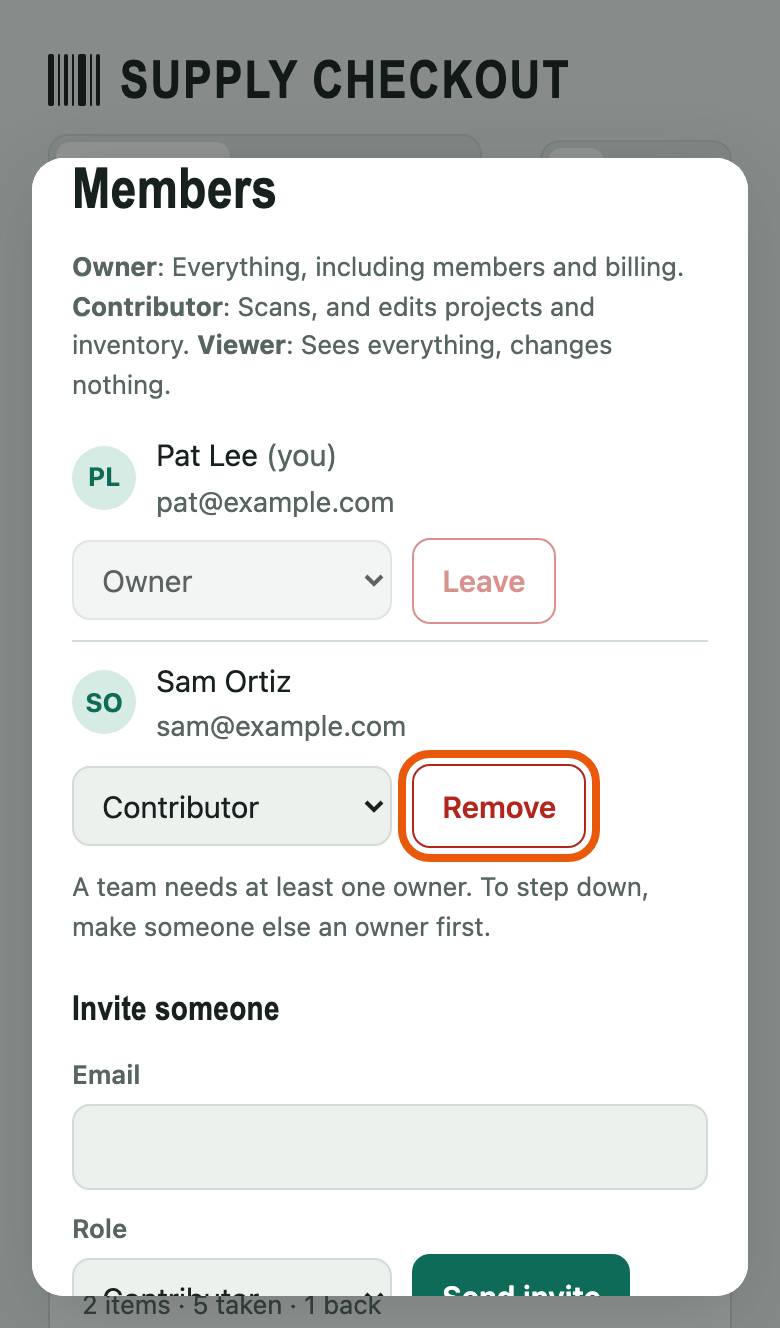
Under Members, each person has their role. To change one, pick a new role in their list. To take someone off the team, tap Remove, then tap again to be sure. A team always keeps at least one owner.
-
Step 5 of 5
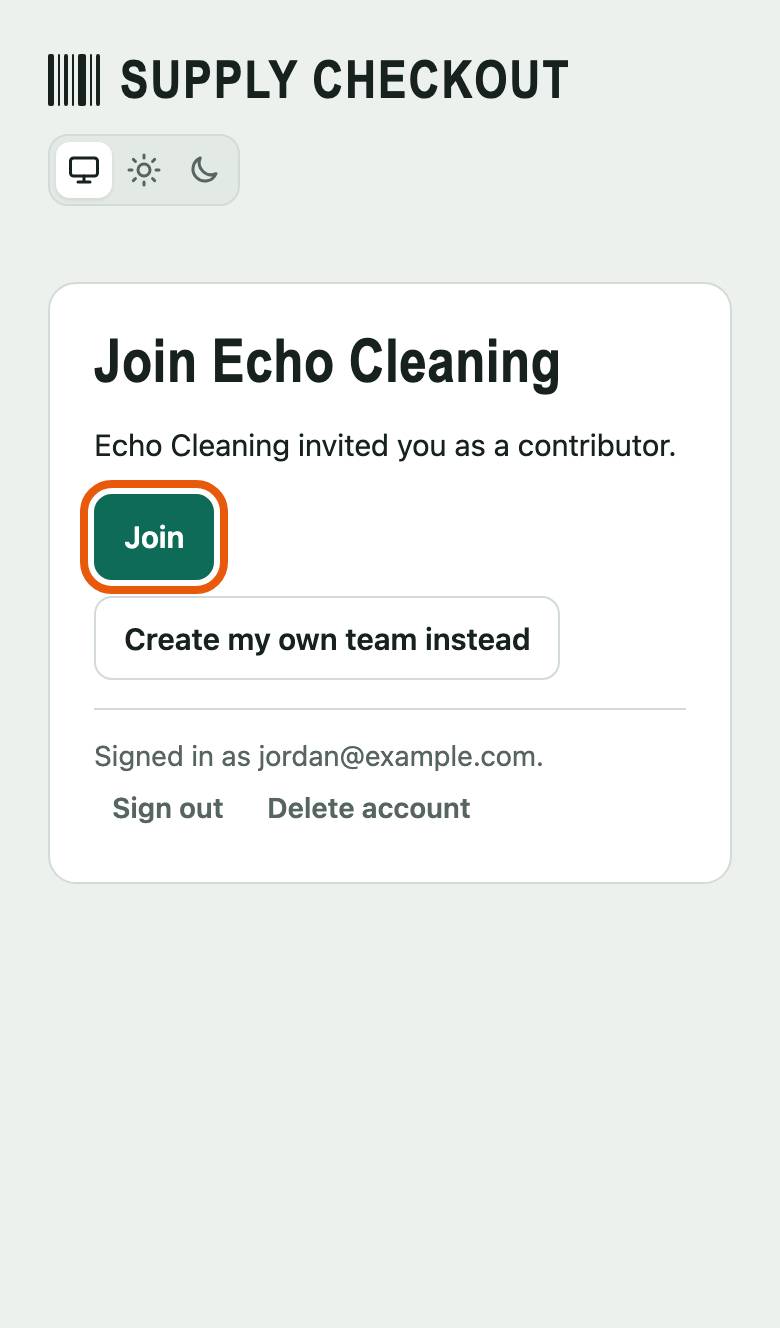
They tap the link and join
Your crew member opens the email on their phone, taps the link, and signs in or signs up. Then they tap Join, and the team's projects are right there.