How-to Lesson 4
Read a receipt
About this lesson
- What you'll do
- Take a photo of a receipt after buying supplies. The app reads every line and matches it to your inventory. You check the lines, say which client each is for (or storage), and save.
- How long it takes
- About 5 minutes, plus up to a minute while the receipt is read.
- You need
- A phone with a camera, signed in to Supply Checkout, and the receipt.
-
Step 1 of 6
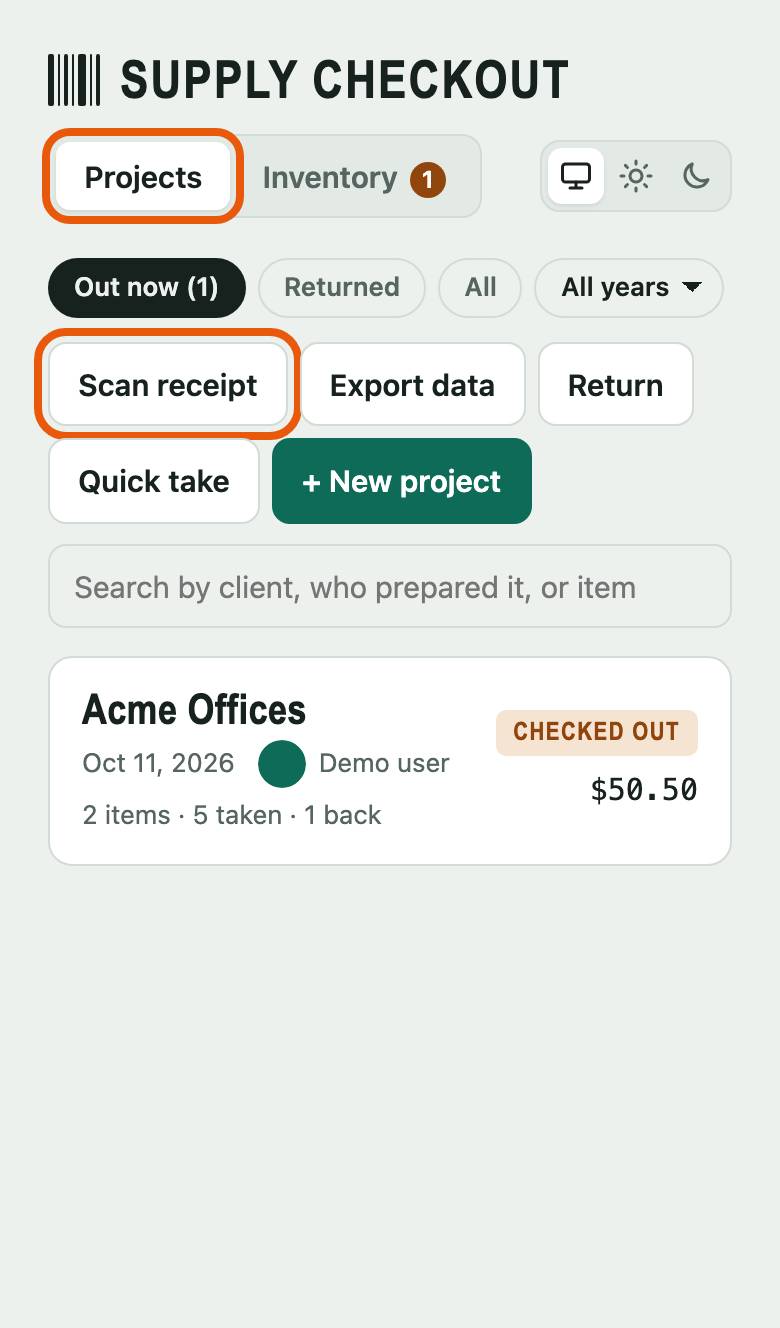
Tap Scan receipt
On Projects, tap Scan receipt and take a photo of the whole receipt. Lay it flat, in good light, with every line in the photo.
-
Step 2 of 6
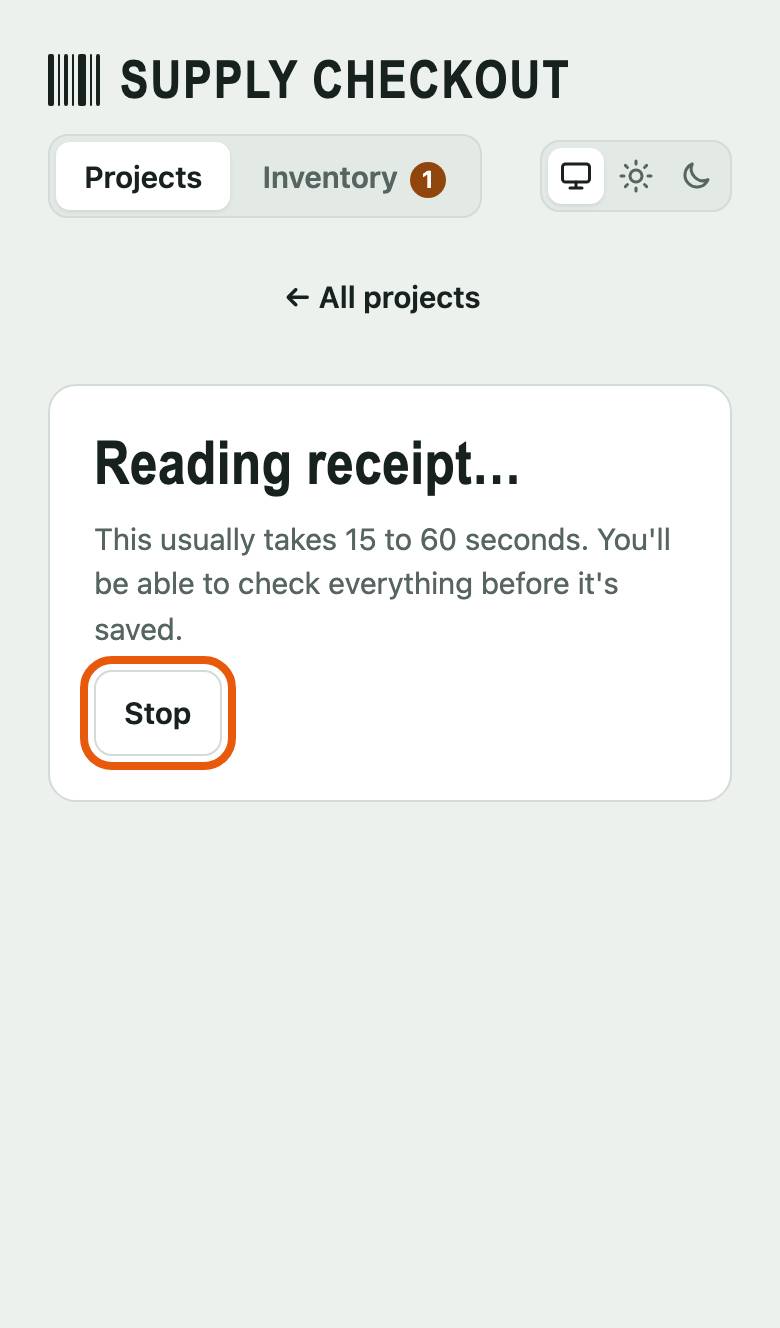
Wait while it's read
Reading takes 15 to 60 seconds. Nothing is saved yet. Took the wrong photo? Tap Stop and try again.
-
Step 3 of 6
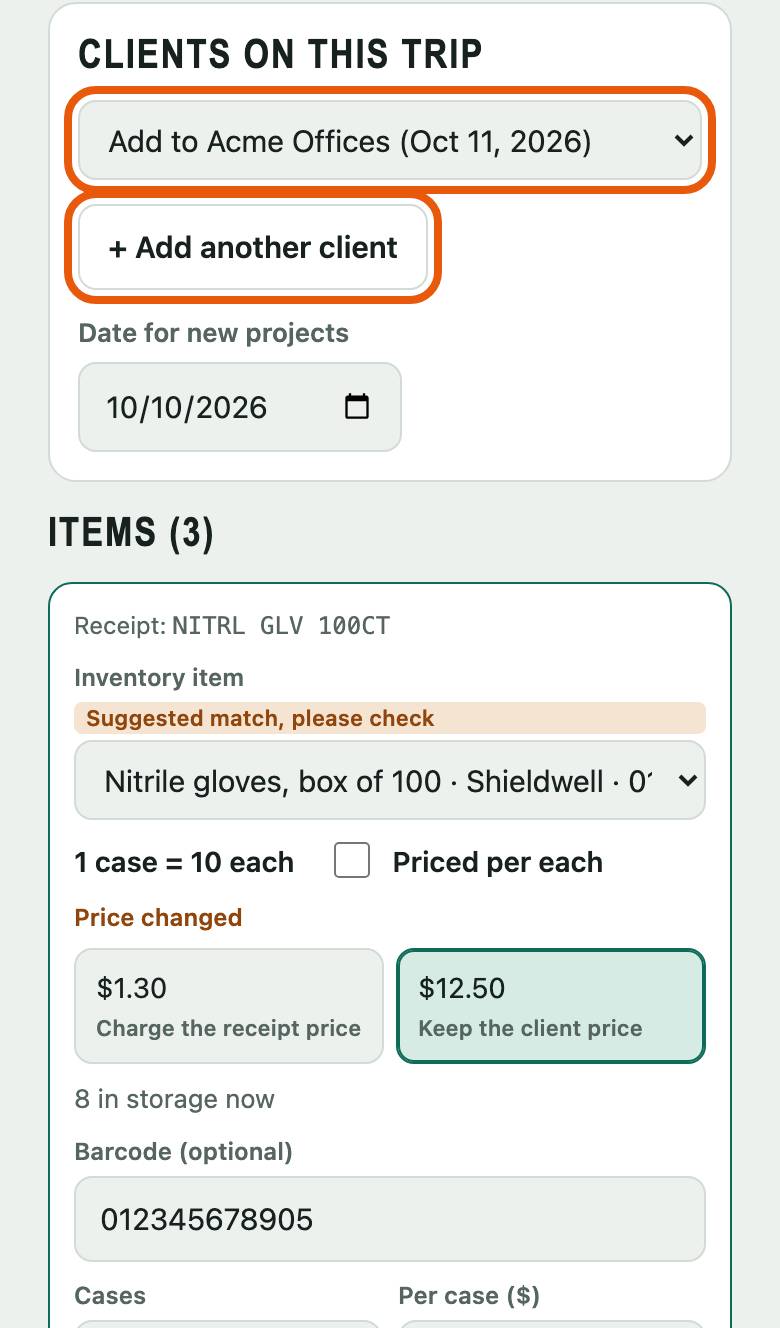
Say which client it's for
Under Clients on this trip, pick the client's project in Project for client 1, or pick New project and type the client's name. Bought for more than one client? Tap + Add another client.
-
Step 4 of 6
Check each line
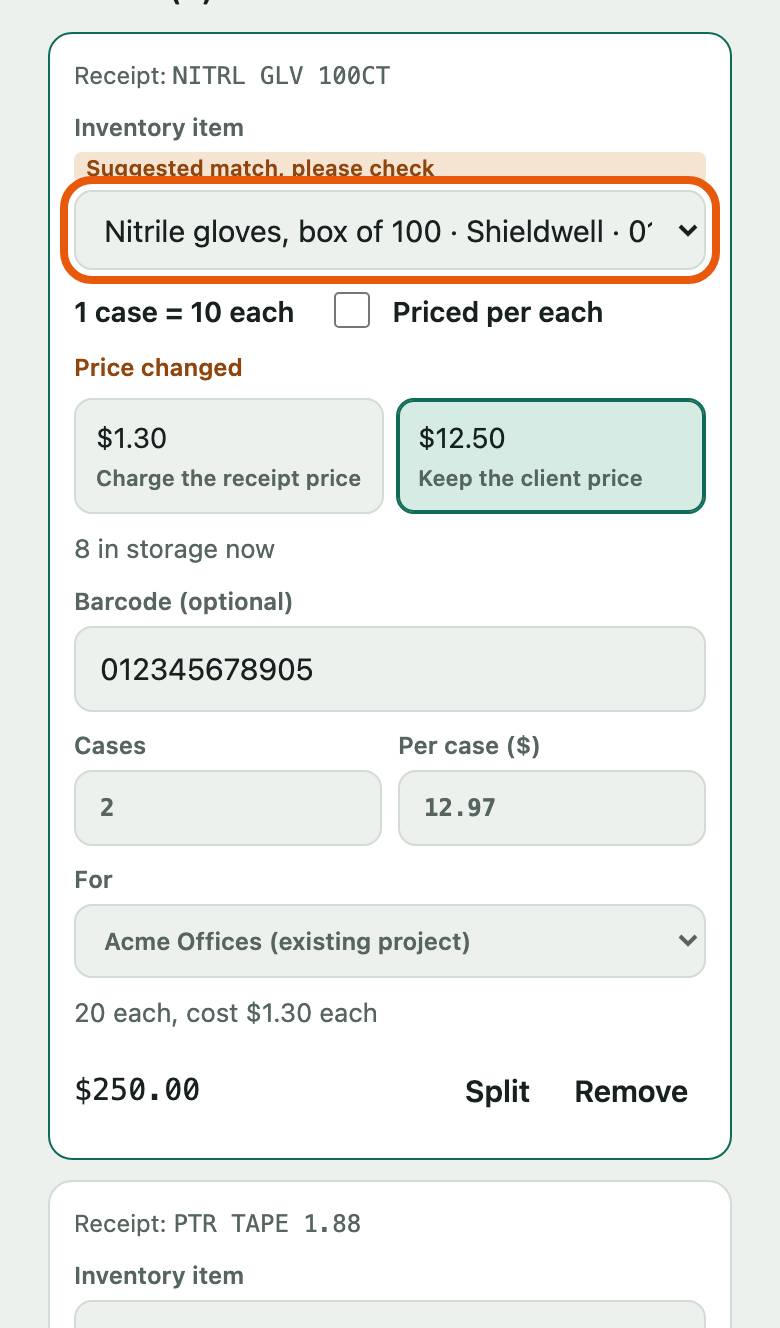
Each line shows what the receipt says, and the inventory item it matched in Inventory item. A match that says Suggested match, please check needs a look: pick the right item, or New item if it isn't in your inventory yet. Fix the quantity or price if the receipt was read wrong.
-
Step 5 of 6
Choose the price and where it goes
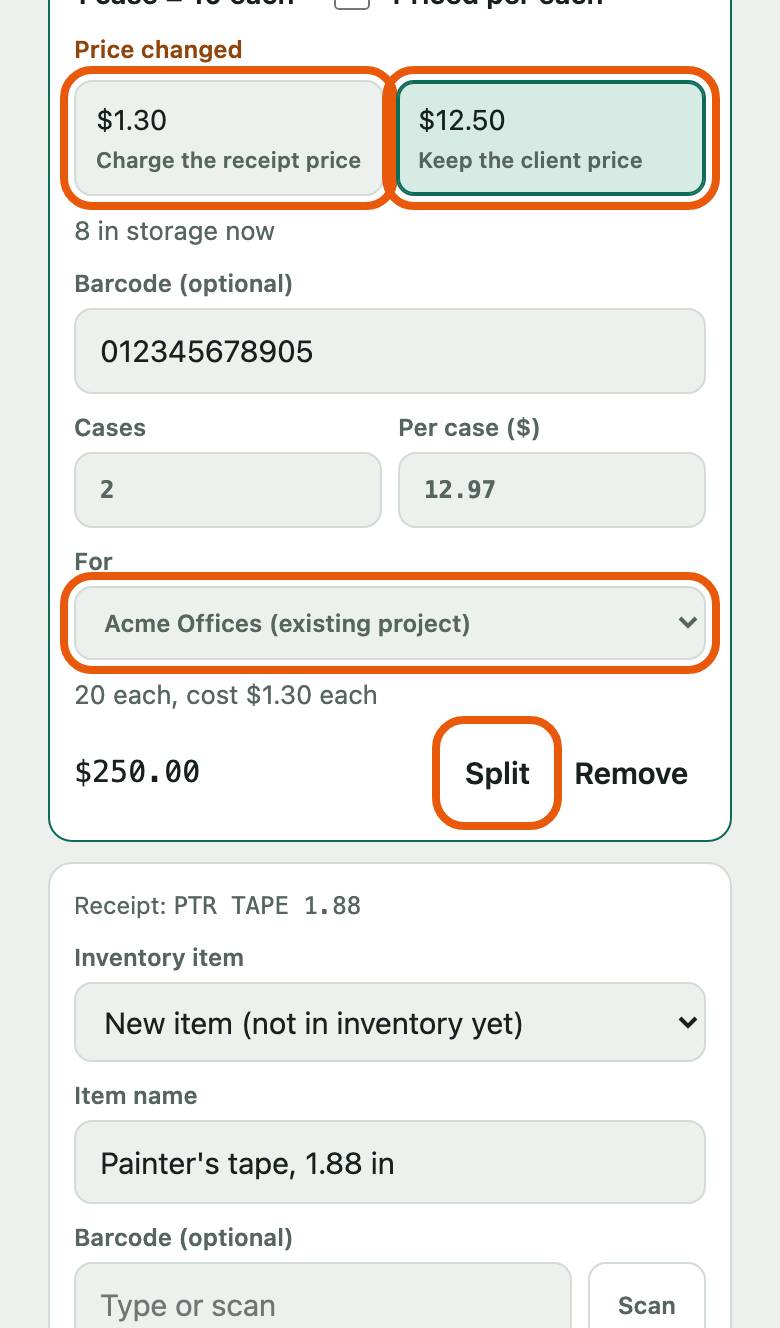
If the price changed, tap Charge the receipt price or Keep the client price. Then pick where the line goes in For: a client, or General inventory (storage) for supplies going on the shelf. One item shared between two clients? Tap Split.
-
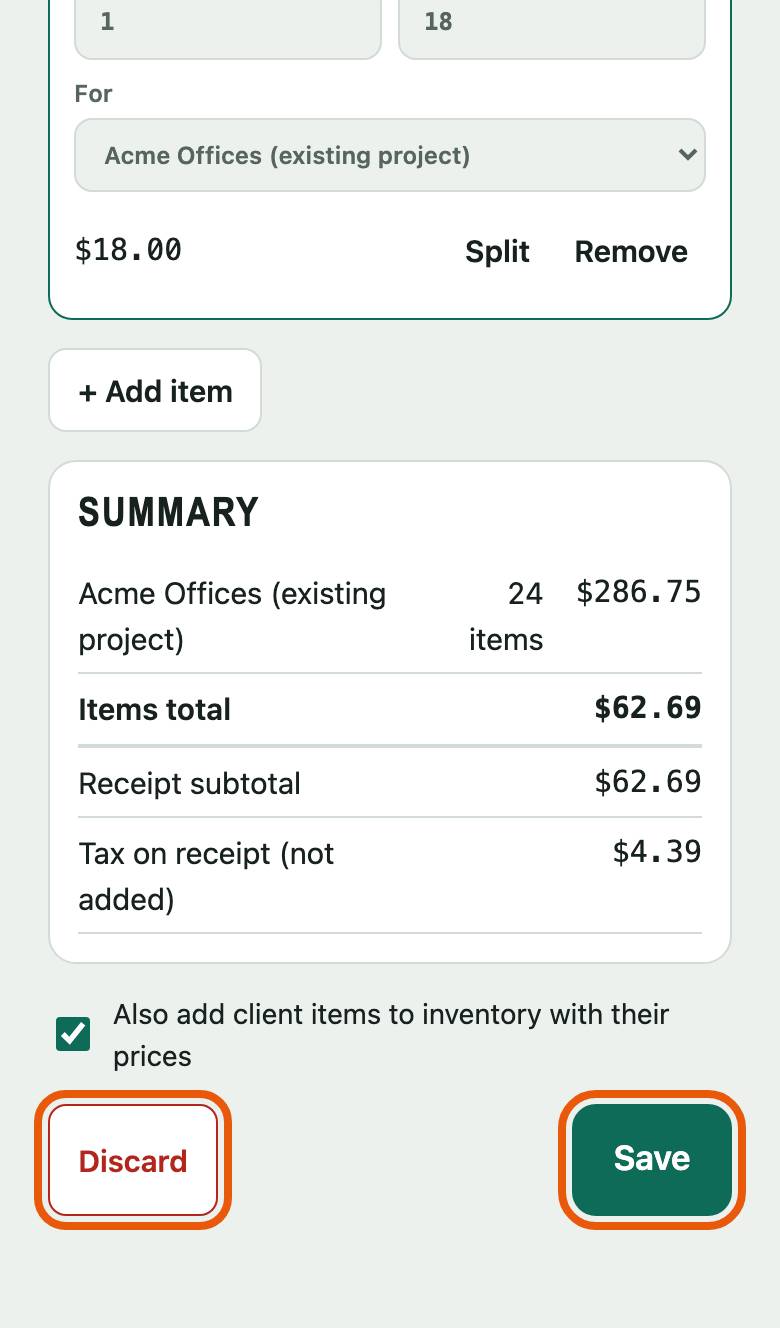
Step 6 of 6
Check the summary and save
The summary shows what each client gets and the total. Nothing is saved until you tap Save. Changed your mind? Tap Discard.